Since RPA v.4.0.0, the scripting utility supports a server mode that can be used to integrate RPA with third-party tools via an HTTP interface.
Users can call RPA functions from custom programs developed in Octave, Scilab, and Matlab.
RPA provides a simple HTTP API that is not intended for production server use. Instead, run the tool on your local workstation and connect to it from local instances of third-party applications.
Table of contents:
- Getting started
- Example of using RPA scripting server with CURL
- Example of using RPA scripting server from Scilab scripts
- Example of using RPA scripting server from Octave scripts
Examples are available for download from the RPA site:
- For Scilab server-mode-scilab.zip
- For Octave server-mode-octave.zip
Getting started
To start the scripting utility in server mode, execute one of the following commands:
RPA-Script.exe --server
to start the server on the default port 8080, or:
RPA-Script.exe --server 80
to start the server on a specified port (80 in this example).
You can now connect to the server using a web browser or any other tool that supports the HTTP protocol, such as CURL, or custom tools.
To view the help screen for the HTTP API, open the following URL in any web browser:
http://localhost:8080/about
RPA-Script Server v.4.0.11
Web API
  /evaluate	 POST
  /reset	 POST
  /log/info	 GET
  /log/warn	 GET
  /log/error	 GET
  /about	 GET
Example of using RPA scripting server with CURL
Example of executing the script file examples/scripting/mixture_1.js with CURL:
curl -i --request POST \
	--header "Content-Type: text/plain" \
	--header "Accept: text/plain" \
	-F "file=@examples/scripting/mixture_1.js" \
	http://localhost:8080/evaluate
Response:
HTTP/1.1 200 OK
Content-Type: text/plain
Content-Length: 951

Mixture (built-in printout)
**********************************

Mixture (script printout)
**********************************
-------------------------------------------------------------
  Propellant Mixture           Mass            Mole
                          fractions       fractions
-------------------------------------------------------------
         NH4CLO4(cr)      0.7000000       0.4452445
              AL(cr)      0.2000000       0.5539381
       HTPB+Curative      0.1000000       0.0008174
-------------------------------------------------------------
              Total:      1.0000000       1.0000000
-------------------------------------------------------------
Exploded chemical formula:
    based on 1 mole:     (N)0.449331 (H)2.580360 (CL)0.445245 (O)1.791604 (AL)0.553938 (C)0.536191
     based on 100 g:     (N)0.006013 (H)0.034529 (CL)0.005958 (O)0.023974 (AL)0.007413 (C)0.007175

Equivalence ratio: 0.630733 (omitted: CU)
Equivalence ratio: 0.630733 (omitted: )
Example of executing the JavaScript code (2+5) with CURL:
curl -i --request POST \
	--header "Content-Type: text/plain" \
	--header "Accept: text/plain" \
	--data '2+5' \
	http://localhost:8080/evaluate
Response 7 (2+5=7):
HTTP/1.1 200 OK
Content-Type: text/plain
Content-Length: 1

7
In consecutive calls you may use any object (both standard JavaScript and RPA-specific) that was created in a previous calls.
For example:
curl -i --request POST \
	--header "Content-Type: text/plain" \
	--header "Accept: text/plain" \
	-F "file=@examples/scripting/mixture_1.js" \
	http://localhost:8080/evaluate

curl -i --request POST \
	--header "Content-Type: text/plain" \
	--header "Accept: text/plain" \
	--data 'omit = ["CU"]' \
	http://localhost:8080/evaluate

curl -i --request POST \
	--header "Content-Type: text/plain" \
	--header "Accept: text/plain" \
	--data 'mix.getEquivalenceRatio(omit)' \
	http://localhost:8080/evaluate
The response returns the equivalence ratio 0.6307330246120119 for the object mix (mixture), which was created after the first request:
HTTP/1.1 200 OK
Content-Type: text/plain
Content-Length: 18

0.6307330246120119
To reset the current context and remove all created JavaScript objects, use the command /reset:
curl -i --request POST \
	--header "Content-Type: text/plain" \
	--header "Accept: text/plain" \
	http://localhost:8080/reset
Example of using RPA scripting server from Scilab scripts
Scilab is a free and open source software for engineers & scientists, with a long history (first release in 1994) and a growing community.
Scilab provides the API to communicate with external services via HTTP interface.
Access to the RPA server can be simplified by using custom helper functions in Scilab:
rpa_url = "http://localhost:8080";

// Load script as a text from specified path
function [script]=rpa_load_script(file_name)
    details = fileinfo(file_name);
    len = details(1);
    fd = mopen(file_name, 'rt');
    script = mgetstr(len, fd);
    mclose(fd);
endfunction

// Reset the server context
function []=rpa_reset()
    [res,code] = http_post(rpa_url+"/reset");
endfunction

// Execute the script passed as a text
// Returned values:
//    res - result; depends on the script
//    code - HTTP status code; has to be 200 on success
function [res,code]=rpa_execute(script)
    [res,code] = http_post(rpa_url+"/evaluate", script);
endfunction
Using helper functions, the call from Scilab to RPA scripting server can be performed as follows:
// Reset the current server context.
// All previously created objects will be removed.
rpa_reset();

// Load the script from file C:/SD/test.js
script = rpa_load_script("C:/SD/test.js");

// Execute the loaded script
[res,code] = rpa_execute(script);

// Get the values "Combustion pressure [MPA]" and "Combustion temperature [K]"
// from the object "e" created in server context (see the code of example script "test.js" below)
[res,code] = rpa_execute("printf(''[%f, %f]'', e.getP(''MPa''), e.getT(''K''))");

// Note the format of parameters: [%f, %f]
// This will create a standard pair of Scilab values which can be immediately referenced as
// res(1) and res(2) and used in any calculations in Scilab.
// In this way you may also print out the vectors or matrices.

// Execute any JS code within the current context.
// It may use or may not use any objects created in the context.
// It may also create new objects within the context.
[res,code] = rpa_execute("(1+2) * 5");

// The script above returns a single value which can be referenced as res and used in any calculations in Scilab

// Get the oxygen balance of the object "mix" stored in the current context (see the code of the test script below)
[res,code] = rpa_execute("mix.getOxygenBalance()");

// The script above returns a single value which can be referenced as res and used in any calculations in Scilab
In all examples, the functions returns a pair [res, code] where res is a result (depending on the executed code) and code is a standard HTTP status code. On success, the code has to be equal to 200, so you can verify it in your own scripts.
The code of the example script
C:\SD\test.js
used in examples above:
/* Prepare the mixture of ingredients */
mix = new Mixture();
mix.addSpecies("H2O2(L)", 4.0, "g/cm^3", 0.02);
mix.addSpecies("CuO(cr)", 6.315, "g/cm^3", 0.62);
mix.addSpecies("Zr(a)", 6.52, "g/cm^3", 0.36);

/* Solve problem (p,H)=const using object Combustor */
c = new Combustor(mix, true, true);
c.setP(20.7, "MPa");
c.solve(true, false);
e = c.getEquilibrium();
d = c.getDerivatives();

// You may print the results, so that script execution will return them.
// Otherwise it returns the result of the last statement (object "d" in this case)
printf("%f %f", 1, 1/3);
Note that the server context keeps all created JavaScript objects. On the one hand, this is very helpful, as you can use such objects in subsequent calls. On the other hand, the previously stored objects may affect the execution results of the next JavaScript script. To avoid this, call the reset function (e.g. using helper function rpa_reset()) where appropriate.
Examples for Scilab are available for download from RPA site: server-mode-scilab.zip.
Executing examples
To get started, run RPA Scripting Utility as a server:
RPA-Script.exe --server
Then start Scilab (in example below the UI version is started, but command-line interface can be used as well):
scilab
In Scilab console, execute provided test script test_server_1.sce:
--> exec test_server_1.sce
To test it, check variables T and Z:
--> T
    T  =
        3767.5526

--> z
    z  =
        0.338435
In Scilab console, execute provided test script test_server_2.sce:
--> exec test_server_2.sce
If executed correctly and plotting from Scilab is enabled, a window with the diagram will open.
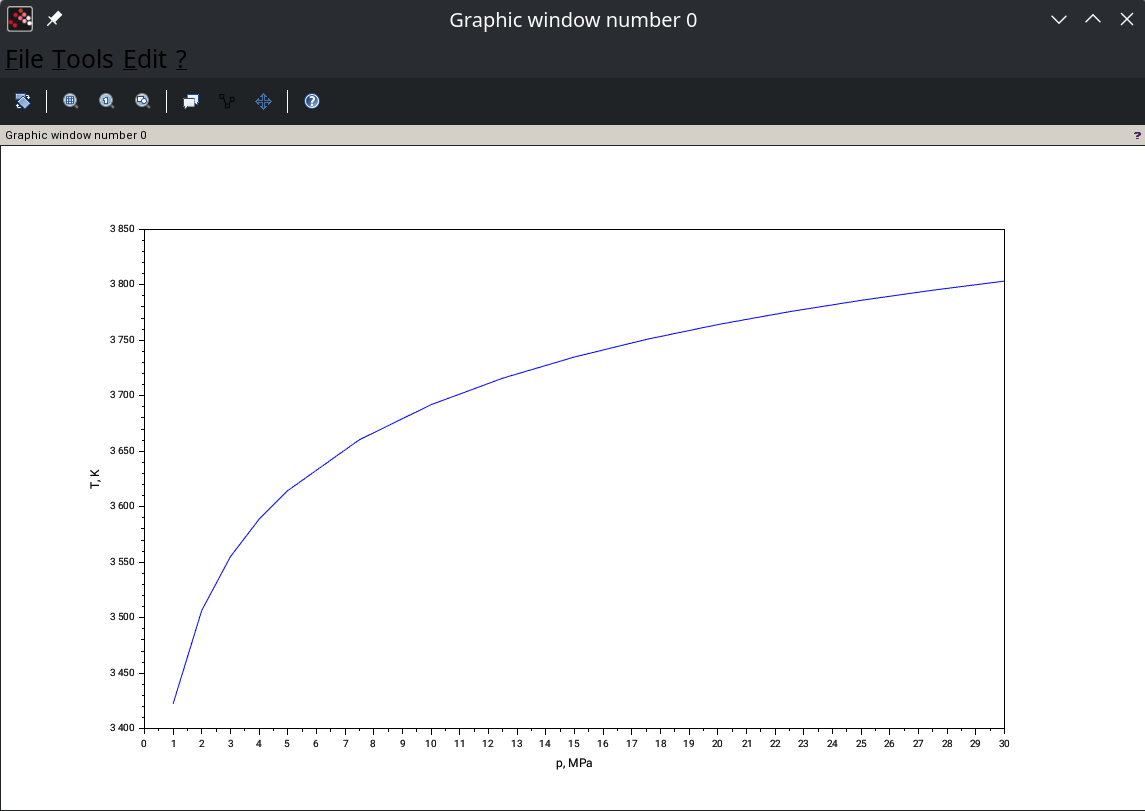
To test the correctness of execution, check the variable T_array:
--> T_array
    T_array  =
        3422.3686
        3506.6007
        3554.9929
        3588.7636
        3614.566
        3660.4091
        3691.9873
        3715.8614
        3734.9275
        3750.7168
        3764.1357
        3775.7642
        3785.995
        3795.1063
        3803.302
Example of using RPA scripting server from Octave scripts
GNU Octave is a high-level language, primarily intended for numerical computations. It provides a convenient command line interface for solving linear and nonlinear problems numerically, and for performing other numerical experiments using a language that is mostly compatible with Matlab. It may also be used as a batch-oriented language.
Octave provides the API to communicate with external services via HTTP interface.
This API can be used to create additional helper custom Octave functions to make the execution of RPA scripts easier, for example:
rpa_url = "http://localhost:8080";
global evaluate_url = [rpa_url "/evaluate"];
global reset_url = [rpa_url "/reset"];

function result = rpa_execute(script)
    global evaluate_url;
    result = urlread(evaluate_url, "post", {"script", script});
endfunction

function rpa_reset()
    global reset_url;
    urlread(reset_url, "post", "");
endfunction

function script = rpa_load_script(fname)
    script = fileread(fname);
endfunction
Using helper functions, the call from Octave to RPA scripting server can be performed as follows:
rpa_reset();

s = rpa_load_script("examples/scripting/mixture_1.js");
rpa_execute(s);

rpa_execute("omit = ['CU']");
er = rpa_execute("mix.getEquivalenceRatio(omit)");
In addition to helper Octave functions, the helper RPA JavaScript functions can be used to assist in the preparing the combustion or performance problems for the analysis from the Octave scripts.
For example, here is a JavaScript file helper.js with helper JavaScript functions for preparing the mixture and solve the combustion problem:
function prepareMixture() {
    var mix = new Mixture();
    for (var i=0; i<arguments.length; i++) {
        var arg = arguments[i];
        mix.addSpecies(arg[0], arg[1]);
    }
    return mix;
}

function solve(mix, p, p_units) {
    var c = new Combustor(mix, true, true);
    c.setP(p, p_units);
    c.solve(true, false);
    return {"e":c.getEquilibrium(), "d":c.getDerivatives()};
}
Such JavaScript helper functions can be used then in combination with Octave helper functions:
rpa_reset();

s2=rpa_load_script("helper.js");
rpa_execute(s2);

# Prepare mixture ans store it in server context as variable "mix"
rpa_execute("mix = prepareMixture(['NH4CLO4(cr)', 0.7], ['AL(cr)', 0.2], ['HTPB+Curative', 0.1])");

p_array = [1, 2, 3, 4, 5, 7.5, 10, 12.5, 15, 17.5, 20, 22.5, 25, 27.5, 30];
T_array = []; # Vector to collect calculated temperatures

for p = p_array
    # Result "res" is stored in the server context
    # and can be reused to obtain calculated values
    rpa_execute(sprintf("res = solve(mix, %f, 'MPa')", p));
    # Obtain required value from stored result
    T_array(end+1) = str2num(rpa_execute("res.e.getT('K')"));
end

plot(p_array, T_array);
xlabel ("p, MPa");
ylabel ("T, K");
Note that the server context keeps all created JavaScript objects. On the one hand, this is very helpful, as you can use such objects in subsequent calls. On the other hand, the previously stored objects may affect the execution results of the next JavaScript script. To avoid this, call the reset function (e.g. using helper function rpa_reset()) where appropriate.
Examples for Octave are available for download from RPA site: server-mode-octave.zip.
Executing examples
To get started, run RPA Scripting Utility as a server:
RPA-Script.exe --server
Then start Octave (in example below, the command-line interface is started, but UI version can be used as well):
octave
In Octave console, execute provided test script test_server_1.m:
octave:1> source test_server_1.m
To test it, check variables T and Z:
octave:2> T
    T = 3767.5526092485566
octave:3> z
    z = 0.3384350541239415
In Octave console, execute provided test script test_server_2.m:
octave:4> source test_server_2.m
If executed correctly and plotting from Octave is enabled, a window with the diagram will open:
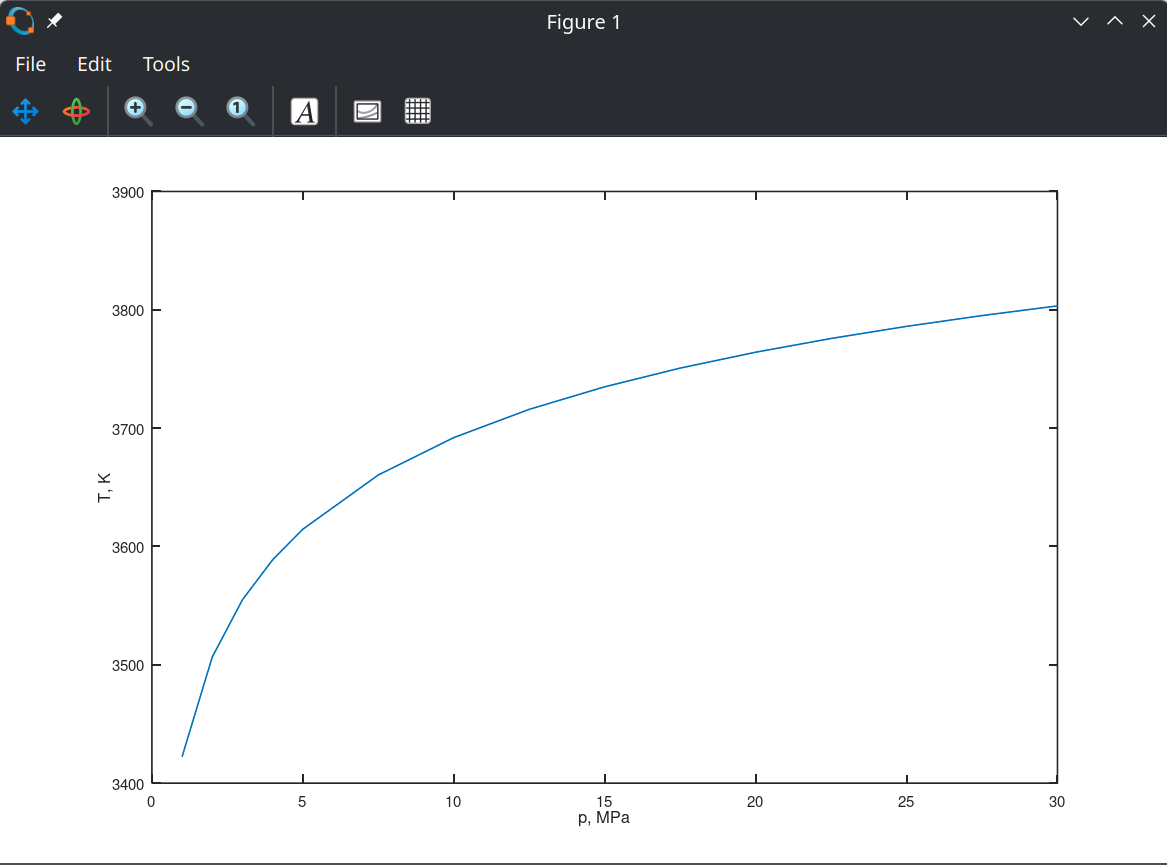
To test the correctness of execution, check the variable T_array:
octave:5> T_array
    T_array =
       3422.4   3506.6   3555.0   3588.8   3614.6   3660.4   3692.0   3715.9   3734.9   3750.7   3764.1   3775.8   3786.0   3795.1   3803.3


